















Optimal Lighting: Reducing Glare in Home Office Workspaces
TL;DR: Your Quick Guide to a Glare-Free Workspace
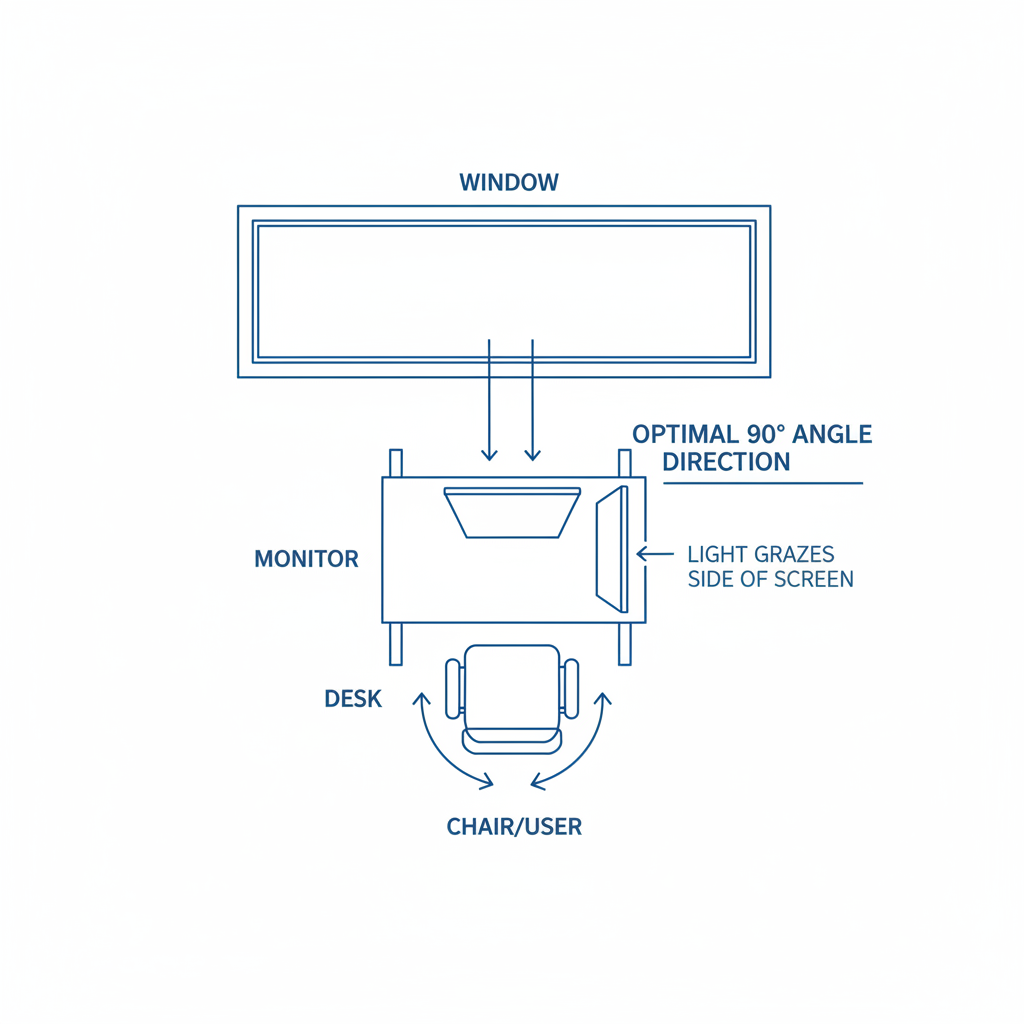
- Positioning is Key: Place your monitor perpendicular (at a 90-degree angle) to windows, not in front of or behind them.
- Control Natural Light: Use blinds, curtains, or anti-glare films to diffuse bright sunlight.
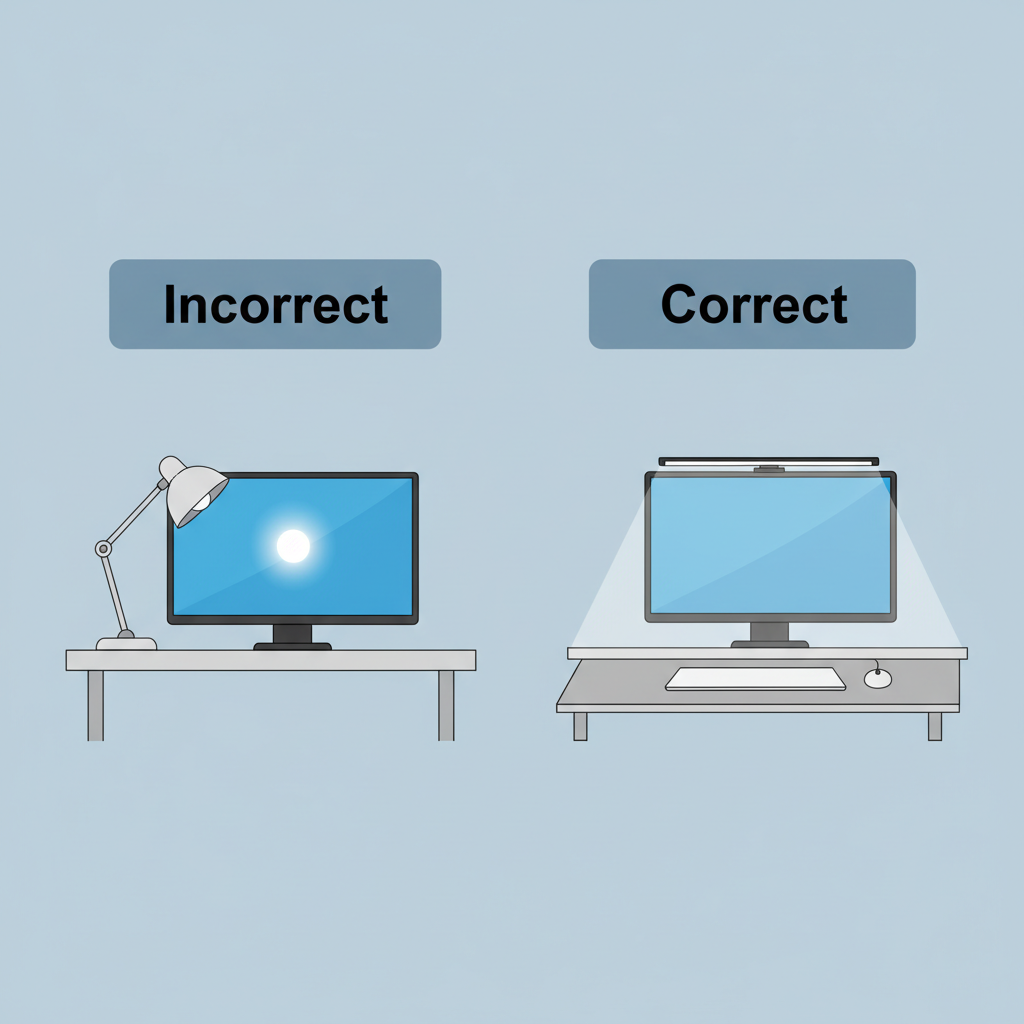
- Rethink Your Task Lamp: Never place a lamp beside your monitor. Instead, use a monitor-mounted light bar or position a lamp behind the screen to illuminate your desk without creating screen reflections.
- Match Your Lights: Adjust your monitor's color temperature to match the ambient light in your room (e.g., warm light, warm screen setting) to reduce eye fatigue.
- Optimize Your Screen: Set your monitor brightness to match the illumination of a piece of white paper held next to it. Use high-contrast text settings.
- Invest in Coatings: High-quality, multi-layer anti-reflective (AR) coatings on your glasses are essential for combating glare from multiple angles in a home office.
The Unseen Enemy: Understanding Glare and Digital Eye Strain
That nagging headache, the feeling of dry, gritty eyes, and the subtle blurriness that creeps in after a few hours at the computer—these are the hallmarks of Digital Eye Strain, or Computer Vision Syndrome (CVS). While many factors contribute, one of the primary environmental culprits is glare. A 2025 review established the global prevalence of CVS at a staggering 69%, a figure that has only climbed in the era of remote work. The problem is not just discomfort; it's a direct hit to productivity.
Glare comes in two forms:
- Discomfort Glare: This is caused by overly bright light sources in your field of view, like an uncovered window or a poorly positioned lamp, forcing you to squint and strain.
- Reflected Glare: This is the light that bounces off your screen and into your eyes. It reduces the contrast of the text and images, forcing your eyes to work harder to focus.
Physiologically, our bodies react poorly to this visual stress. One of the most significant effects is a drastic reduction in our blink rate. As noted by the American Academy of Ophthalmology (AAO), we normally blink about 15 times per minute. When staring at a screen, this can drop to just 5-7 times per minute. Fewer blinks mean the tear film that protects and moisturizes the eye evaporates faster, leading to the dryness and irritation so common among office workers.
Mastering Your Environment: Windows and Ambient Light
Before you even think about your screen settings or glasses, your first line of defense against glare is controlling the light in your room. The biggest variable for most home offices is natural light from windows.
The 90-Degree Rule for Windows
The most critical ergonomic principle for desk placement is to position your monitor perpendicular to your main window. Here’s why the other two common positions fail:
- Window Behind You: This is the worst-case scenario. The bright light from the window will reflect directly off your screen, creating a mirror-like effect that washes out the display.
- Window in Front of You: While better, this creates intense contrast between the bright window and your darker screen, forcing your eyes to constantly readjust and leading to fatigue.
By placing your monitor at a 90-degree angle to the window, natural light comes in from the side, minimizing direct reflections on your screen. To further enhance this, use blinds or sheer curtains to diffuse harsh, direct sunlight, creating a softer, more even illumination.
Calibrating Ambient and Color Temperature
Your general room lighting, or ambient light, should not be excessively bright. According to OSHA guidelines, lighting for screen-based work should often be lower than that for paper-based tasks, typically in the 300-500 lux range. As a simple rule of thumb, your screen should feel as bright as the room around it, not like a lone lantern in a dark cave or a dim panel in a brightly lit space.
Expert Insight: Match Your Color Temperatures A frequently overlooked factor is the mismatch between the color temperature of your room's lights and your monitor. If your room has warm (yellowish) LED bulbs and your monitor is set to a cool (bluish) white, your eyes are forced to constantly adapt. A practical heuristic is to set your monitor’s white point to within 500K of your room’s dominant light source. Most monitors have "Warm," "Cool," and "Neutral" settings that make this easy to adjust.
The Task Lamp Mistake: How to Light Your Desk, Not Your Screen
A common mistake we observe in home office setups is the incorrect placement of a task lamp. Many people place a lamp directly beside their monitor, thinking it will illuminate their workspace. However, this creates a harsh side glare on the screen, producing a bright, distracting reflection.
The correct approach is to illuminate your desk surface without shining light onto the screen itself. There are two effective ways to achieve this:
- Position the Lamp Behind the Monitor: Place your task lamp behind your screen, with the arm positioned to cast light down onto your documents or keyboard. The body of the monitor will block the bulb from your view and prevent it from hitting the screen.
- Use a Monitor-Mounted Light Bar: These devices are a game-changer for home office ergonomics. They sit atop your monitor and cast light perpendicularly down onto your desk. This provides ample light for your workspace while ensuring that zero light hits the screen, completely eliminating the risk of reflected glare from your task lighting.
Your Screen and Glasses: The Final Line of Defense
Once your environmental lighting is optimized, you can fine-tune your personal equipment.
Monitor and Display Settings
- Brightness: Your screen brightness should blend with your ambient environment. A simple test is to hold a white piece of paper next to your monitor. The screen’s white background should be of a similar brightness. If it looks like a light source, it’s too bright; if it looks gray and dull, it’s too dark.
- Contrast and Font: Set your text to a high contrast (e.g., black text on a white background). Research shows that while Dark Mode can reduce pupil stress in low-light environments, high contrast is optimal for reading speed during the day. Ensure your font size is large enough to read comfortably from a normal sitting position.
- Anti-Glare Screens: If you cannot control your environment, a matte-finish monitor or an aftermarket anti-glare screen filter can be a lifesaver by physically scattering reflected light.
The Critical Role of Anti-Reflective Coatings
For eyeglass wearers, the anti-reflective (AR) coating is the single most important feature for fighting digital eye strain. It allows more light to pass through the lens to your eye, reducing the distracting reflections you see on the front and back surfaces of your glasses.
Expert Insight: Not All AR Coatings Are Equal In a traditional office, light is uniform and often comes from directly above. In a home office, light is chaotic—it comes from windows on the side, lamps from behind, and overhead fixtures. A basic, single-layer AR coating may perform poorly in this environment. High-quality, multi-layered AR coatings are designed to cancel out reflections from a much wider angle of incidence, making them significantly more effective at combating the unpredictable glare of a home workspace.
While often marketed as a solution for eye strain, it's important to have clear expectations for blue-light filtering glasses. A gold-standard 2024 Cochrane review found no clear evidence that they reduce eye strain in the short term. The discomfort is primarily caused by reduced blinking, glare, and uncorrected vision—not the blue light itself. However, as we discuss in our article on Signs of Digital Eye Strain & How Blue Light Blocking Glasses Help, they can be a useful tool for improving sleep quality by preventing melatonin suppression when used in the hours before bed.
Frequently Asked Questions (FAQ)
-
Q: I’ve fixed my lighting, but my eyes still hurt. What gives? A: Glare is just one piece of the puzzle. Ensure you are following the "20-20-20" rule: every 20 minutes, look at something 20 feet away for at least 20 seconds. Also, consider other ergonomic factors like chair height and monitor distance. Finally, your symptoms could be a sign of an uncorrected or outdated vision prescription.
-
Q: Why do my glasses cause more glare with video calls? A: The ring lights popular with streamers and remote workers are a direct, head-on light source. This is the ultimate test for an AR coating. If your glasses lack a high-quality AR coating, the ring light will create intense, distracting reflections on your lenses.
-
Q: Can I just buy a cheap anti-glare screen protector for my monitor? A: You can, and it may help with reflections. However, be aware that the cheapest films can sometimes reduce screen sharpness and color accuracy. It is often a trade-off between glare reduction and image quality.
-
Q: My whole wall is a window. What can I do? A: If you cannot move your desk, your best solution is aggressive light filtering. Invest in blackout curtains that you can partially close to block the most direct sun, or apply a high-quality anti-glare window film, which can reduce incoming light without completely blocking the view.
This article is for informational purposes only and does not constitute professional medical advice. If you are experiencing persistent eye discomfort, headaches, or vision changes, please consult a qualified optometrist or ophthalmologist. Proper diagnosis requires a comprehensive eye examination.


